作るもの: 「Hello PWA」アプリ
目次
シンプルなWebページ
シンプルなWebページ:
- 「Hello PWA!」というタイトル
- 現在時刻を表示
- ボタンをクリックするとカウント
- オフラインでも動く
- ホーム画面に追加できる
フォルダ構成:
ステップ1: 以下のフォルダを作成
📁 my-first-pwa/
  ├─ 📄 index.html
  ├─ 📄 style.css
  ├─ 📄 app.js
  ├─ 📄 service-worker.js
  ├─ 📄 manifest.json
  └─ 📁 icons/
      ├─ 🖼️ icon-192.png
      └─ 🖼️ icon-512.png
ステップ1: index.html
新しいファイル index.html を作成して、以下をコピペ:
<!DOCTYPE html>
<html lang="ja">
<head>
    <meta charset="UTF-8">
    <meta name="viewport" content="width=device-width, initial-scale=1.0">
    <meta name="theme-color" content="#2196F3">
    <title>My First PWA</title>
    <link rel="stylesheet" href="style.css">
    <link rel="manifest" href="manifest.json">
</head>
<body>
    <div class="container">
        <h1>🚀 Hello PWA!</h1>
        <p class="subtitle">Progressive Web App を作ってみた</p>

        <div class="card">
            <p>現在時刻:</p>
            <p class="time" id="time">--:--:--</p>
        </div>

        <div class="card">
            <p>クリックカウント:</p>
            <p class="count" id="count">0</p>
            <button id="countBtn">カウント +1</button>
        </div>

        <div class="status">
            <p id="status">オンライン 🟢</p>
        </div>
    </div>

    <script src="app.js"></script>
</body>
</html>
ステップ2: style.css
新しいファイル style.css を作成:
* {
    margin: 0;
    padding: 0;
    box-sizing: border-box;
}

body {
    font-family: -apple-system, BlinkMacSystemFont, 'Segoe UI', sans-serif;
    background: linear-gradient(135deg, #667eea 0%, #764ba2 100%);
    min-height: 100vh;
    display: flex;
    justify-content: center;
    align-items: center;
    padding: 20px;
}

.container {
    background: white;
    border-radius: 20px;
    padding: 40px;
    max-width: 400px;
    width: 100%;
    box-shadow: 0 20px 60px rgba(0,0,0,0.3);
}

h1 {
    color: #333;
    text-align: center;
    margin-bottom: 10px;
    font-size: 2em;
}

.subtitle {
    text-align: center;
    color: #666;
    margin-bottom: 30px;
    font-size: 0.9em;
}

.card {
    background: #f5f5f5;
    border-radius: 10px;
    padding: 20px;
    margin-bottom: 20px;
    text-align: center;
}

.time, .count {
    font-size: 2em;
    font-weight: bold;
    color: #2196F3;
    margin: 10px 0;
}

button {
    background: #2196F3;
    color: white;
    border: none;
    padding: 12px 24px;
    border-radius: 25px;
    font-size: 1em;
    cursor: pointer;
    transition: all 0.3s;
}

button:hover {
    background: #1976D2;
    transform: scale(1.05);
}

button:active {
    transform: scale(0.95);
}

.status {
    text-align: center;
    margin-top: 20px;
    padding: 10px;
    background: #e8f5e9;
    border-radius: 10px;
}

.status.offline {
    background: #ffebee;
}

#status {
    color: #333;
    font-weight: bold;
}
ステップ3: app.js
新しいファイル app.js を作成:
// Service Worker の登録
if ('serviceWorker' in navigator) {
    window.addEventListener('load', () => {
        navigator.serviceWorker.register('/service-worker.js')
            .then(registration => {
                console.log('✅ Service Worker 登録成功:', registration);
            })
            .catch(error => {
                console.log('❌ Service Worker 登録失敗:', error);
            });
    });
}

// 時計の表示
function updateTime() {
    const now = new Date();
    const timeString = now.toLocaleTimeString('ja-JP');
    document.getElementById('time').textContent = timeString;
}

// 1秒ごとに更新
setInterval(updateTime, 1000);
updateTime(); // 初回表示

// カウンター
let count = localStorage.getItem('count') || 0;
document.getElementById('count').textContent = count;

document.getElementById('countBtn').addEventListener('click', () => {
    count++;
    document.getElementById('count').textContent = count;
    localStorage.setItem('count', count);
});

// オンライン/オフライン状態の監視
function updateOnlineStatus() {
    const statusElement = document.getElementById('status');
    const statusContainer = statusElement.parentElement;

    if (navigator.onLine) {
        statusElement.textContent = 'オンライン 🟢';
        statusContainer.classList.remove('offline');
    } else {
        statusElement.textContent = 'オフライン 🔴';
        statusContainer.classList.add('offline');
    }
}

window.addEventListener('online', updateOnlineStatus);
window.addEventListener('offline', updateOnlineStatus);
updateOnlineStatus(); // 初回チェック
ステップ4: service-worker.js 重要!
新しいファイル service-worker.js を作成:
// キャッシュ名(バージョン管理用)
const CACHE_NAME = 'my-first-pwa-v1';

// キャッシュするファイル一覧
const urlsToCache = [
    '/',
    '/index.html',
    '/style.css',
    '/app.js'
];

// インストール時: キャッシュにファイルを保存
self.addEventListener('install', (event) => {
    console.log('🔧 Service Worker: インストール中...');

    event.waitUntil(
        caches.open(CACHE_NAME)
            .then((cache) => {
                console.log('📦 キャッシュを開きました');
                return cache.addAll(urlsToCache);
            })
            .then(() => {
                console.log('✅ すべてのファイルをキャッシュしました');
            })
    );
});

// アクティベート時: 古いキャッシュを削除
self.addEventListener('activate', (event) => {
    console.log('🚀 Service Worker: アクティベート中...');

    event.waitUntil(
        caches.keys().then((cacheNames) => {
            return Promise.all(
                cacheNames.map((cacheName) => {
                    if (cacheName !== CACHE_NAME) {
                        console.log('🗑️ 古いキャッシュを削除:', cacheName);
                        return caches.delete(cacheName);
                    }
                })
            );
        })
    );
});

// フェッチ時: キャッシュから返す(オフライン対応)
self.addEventListener('fetch', (event) => {
    event.respondWith(
        caches.match(event.request)
            .then((response) => {
                // キャッシュにあればそれを返す
                if (response) {
                    console.log('📦 キャッシュから返します:', event.request.url);
                    return response;
                }

                // なければネットワークから取得
                console.log('🌐 ネットワークから取得:', event.request.url);
                return fetch(event.request);
            })
    );
});
ステップ5: manifest.json
新しいファイル manifest.json を作成:
{
    "name": "My First PWA",
    "short_name": "First PWA",
    "description": "私が作った最初のPWA",
    "start_url": "/",
    "display": "standalone",
    "background_color": "#ffffff",
    "theme_color": "#2196F3",
    "icons": [
        {
            "src": "/icons/icon-192.png",
            "sizes": "192x192",
            "type": "image/png",
            "purpose": "any maskable"
        },
        {
            "src": "/icons/icon-512.png",
            "sizes": "512x512",
            "type": "image/png",
            "purpose": "any maskable"
        }
    ]
}
ステップ6: アイコン画像

`icons` フォルダに2つの画像を用意:
icon-192.png` と `icon-512.png` として保存
🌐 **ローカルサーバーで実行**
PWAは **HTTPS または localhost** でしか動かない!
方法1: VS Code の Live Server(簡単)
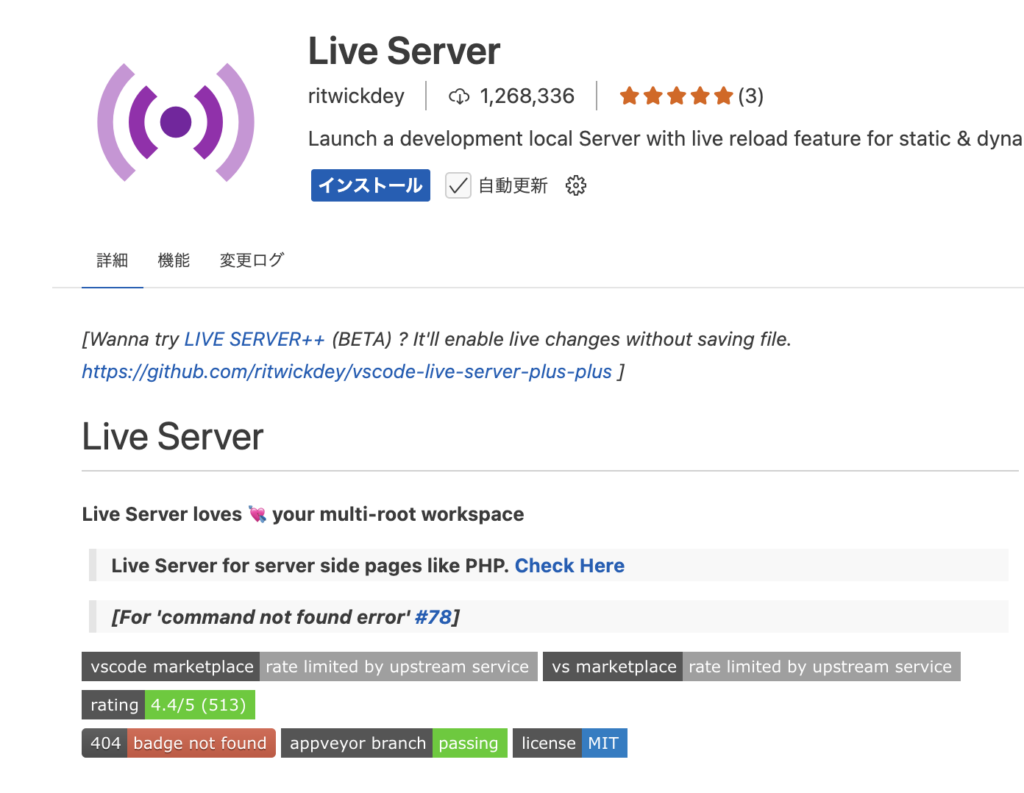
- Live Server 拡張機能をインストール
- index.html を右クリック
- 「Open with Live Server」
→ ブラウザで自動的に開く!
🧪 オフライン動作の確認
- ページを開く
- リロード(Service Worker がインストールされる)
- DevTools > Application > Service Workers
→ “Offline” にチェック - ページをリロード
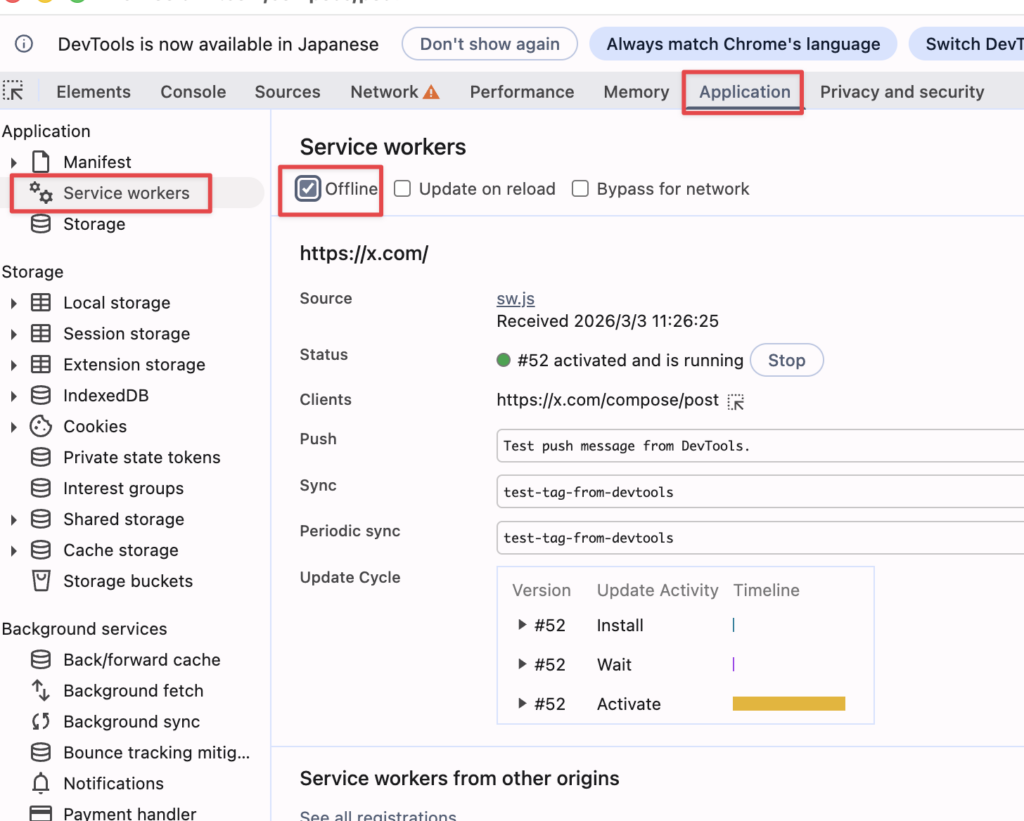
結果:
✅ オフラインでも表示される!
✅ 時計も動く!
✅ カウンターも動く!
✅ 「オフライン 🔴」と表示される
→ PWA 成功!
📱 PWAとしてインストール
Chrome のアドレスバー:
→ インストールアイコン(+マーク)が表示される
→ クリックしてインストール
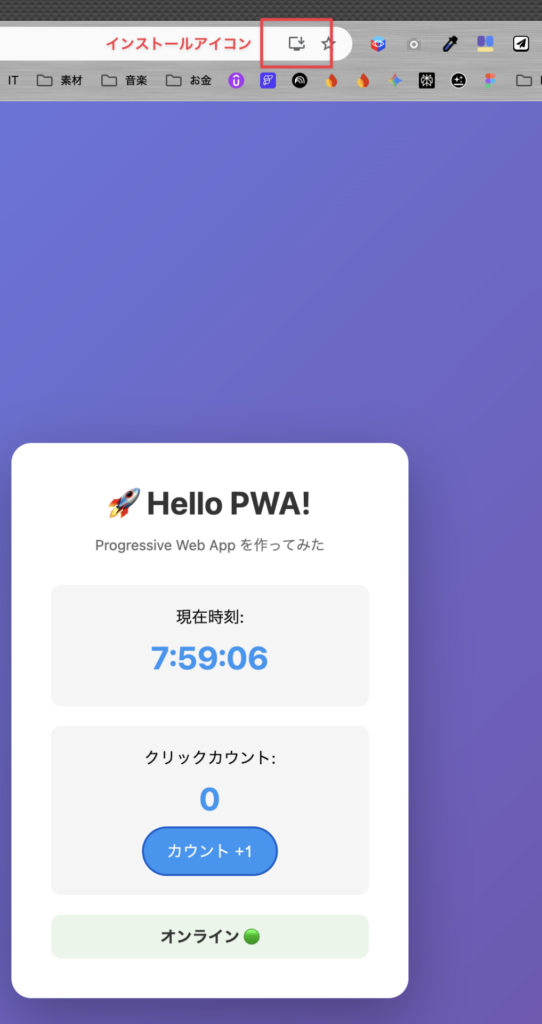
結果:
✅ デスクトップにアイコン
✅ 独立したウィンドウで開く
✅ アプリっぽい!